Shift scheduling
Online shift scheduling: build the week’s schedule in minutes
No more spreadsheets, paper on the notice board and shifts in the group chat. With Weekplace you plan the whole week on one screen – or let the default schedule do it – and employees claim open shifts and swap shifts themselves.
No payment to get started – every feature and every employee
Included in Weekplace · €199 one-time · No subscription
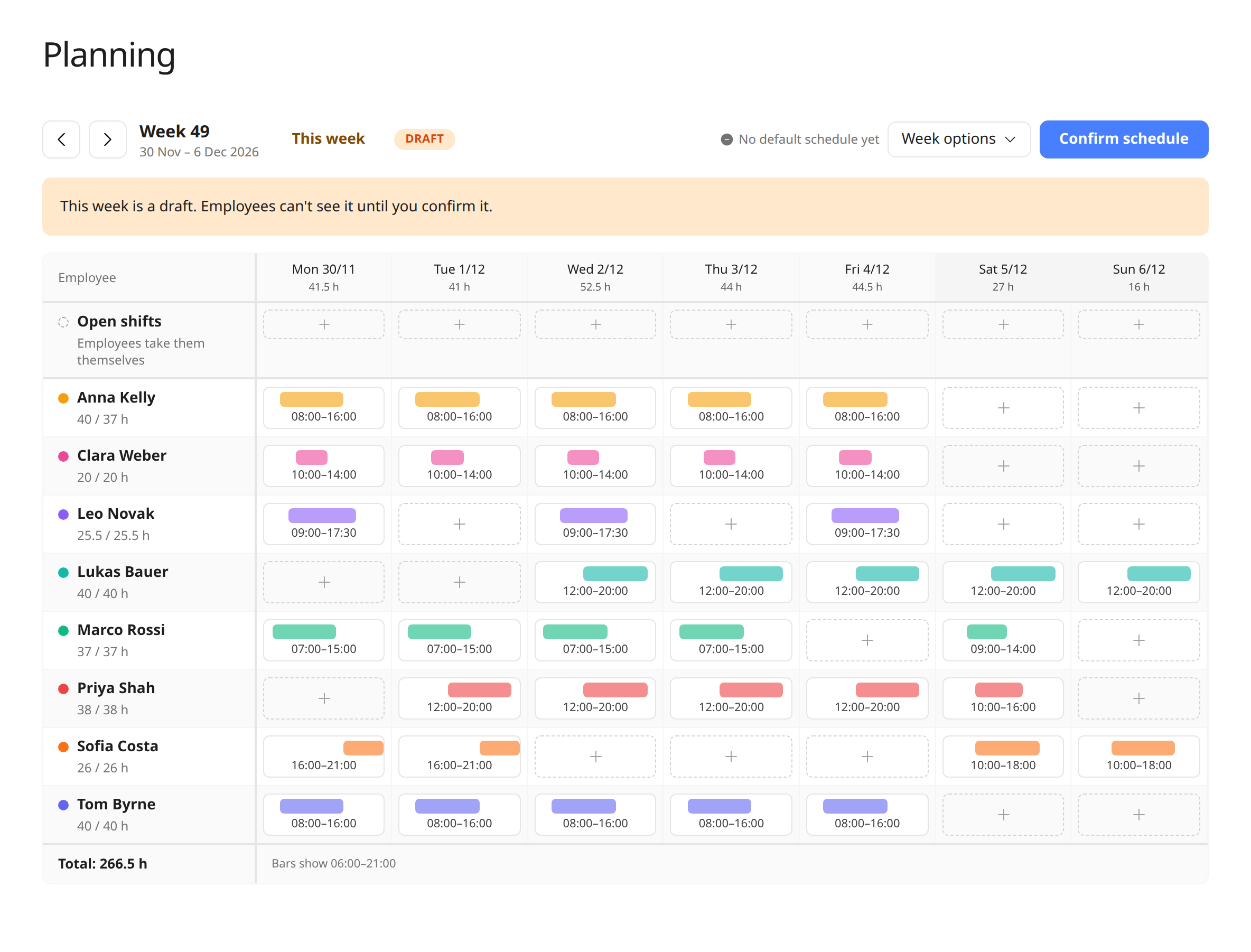
Shift scheduling with everything a small business needs
Built for shops, cafés, restaurants, clinics and other workplaces where working hours change from week to week.
The whole week on one screen
One row per employee and one column per day. Shifts show as bars by time of day, so you see at a glance who opens and who closes.
Hours per employee
See each employee’s scheduled hours next to their contracted weekly hours, e.g. “30 / 37 h”, plus the total hours per day and week.
Schedules per department
Give kitchen and floor, warehouse and shop, or front desk and clinic their own schedule – next to the shared schedule everyone can be put on. Each schedule is confirmed on its own.
A draft until you’re ready
Plan and adjust in peace. Employees only see the week once you press “Confirm schedule”.
Default schedule
Save your usual week as the default. Every Monday, next week is planned from it as a draft, so you only change what’s different.
Open shifts
Post a shift without an employee. Employees see open shifts on their phone and claim them themselves – first come, first served.
Shift swaps
If an employee can’t make a shift, they offer it up for a swap with a short message. The shift only changes hands when a colleague takes it.
Employee availability
Employees say when they can and can’t work – all day or a time range, and every week if they like. A green or red dot shows it in the schedule, and you’re warned about a shift in unavailable time.
Vacation and rest in the schedule
Vacation days show right in the schedule – approved or pending – and can’t be given a shift. The schedule warns you when the 11-hour rest or the 48-hour week isn’t respected.
Copy last week
When weeks look alike, start from a copy of last week and change only what’s different.
Same shift on several days
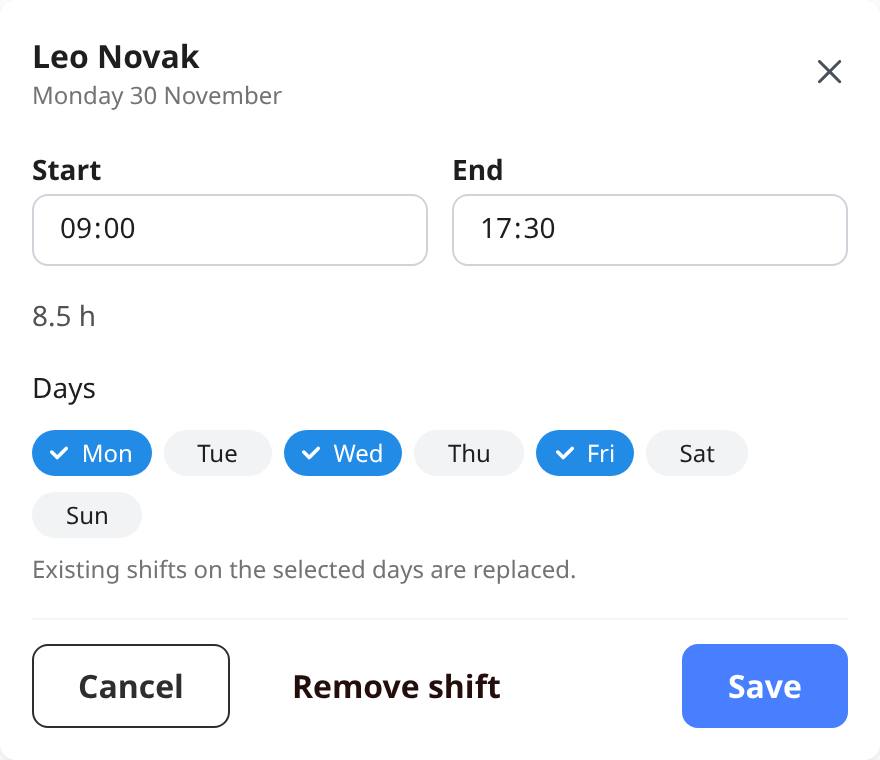
Pick several weekdays in one go when an employee works the same shift Monday to Friday.
Past weeks are kept
Go back and see how a week was planned. Finished weeks can be viewed but not changed.
Everything in one place
One app for time, absence, planning and HR
Replace spreadsheets, paper forms and scattered systems. Click through the features below to see how it works.
Time tracking the EU requires
Stop worrying about the EU rules on recording working time. Let Weekplace do the heavy lifting automatically from each employee's standard hours, or let employees check in and out themselves.
My calendar
Try it – click aroundWeek 43
37 hours
Hours are registered automatically from the standard working week. Employees only adjust when something changes.
- Automatic or manual time tracking
- Meets the EU working time rules
- Approval by managers when needed
Read more about Weekplace as a time tracking app and HR app.
Draft first. Share when it’s ready.
A new week starts as a draft that only you can see. Move shifts around, give the same shift on several days, and keep an eye on the hours. When the week is ready, press “Confirm schedule” and every employee can see it.
If something changes afterwards, employees see the change right away. You can also turn the week back into a draft while you make bigger changes.
One schedule per department – and a shared one for everyone
If you have kitchen and floor, warehouse and shop, or several teams, each department can get its own schedule. Whoever plans the kitchen only sees the kitchen’s employees, and each schedule is confirmed on its own. The cards at the top show how far each department is with the week.
Next to the departments is the shared schedule that anyone can be put on – for shifts across departments, for example. If an employee works in several departments, you see their other shifts faded and get a warning if two shifts overlap.
Open shifts and swaps – without calling around
Short of someone for Friday’s evening shift? Post it as an open shift. Employees see it on their phone under “Open shifts”, and the first to press “Take shift” has it.
If an employee can’t make their shift, they offer it for a swap with a short message. The shift stays theirs until a colleague takes it – so no shift is ever left without anyone on it.
Know who can work before you plan
No more collecting “I can’t do Tuesday” from texts and the group chat. Employees say under “My availability” when they can and can’t work – all day or a time range, with a note, and repeated every week if they like.
In the schedule, a green or red dot shows who is available. Put someone on a shift in a time they said no to, and you get a warning – but you still decide.
A scheduling app: employees see their shifts on their phone
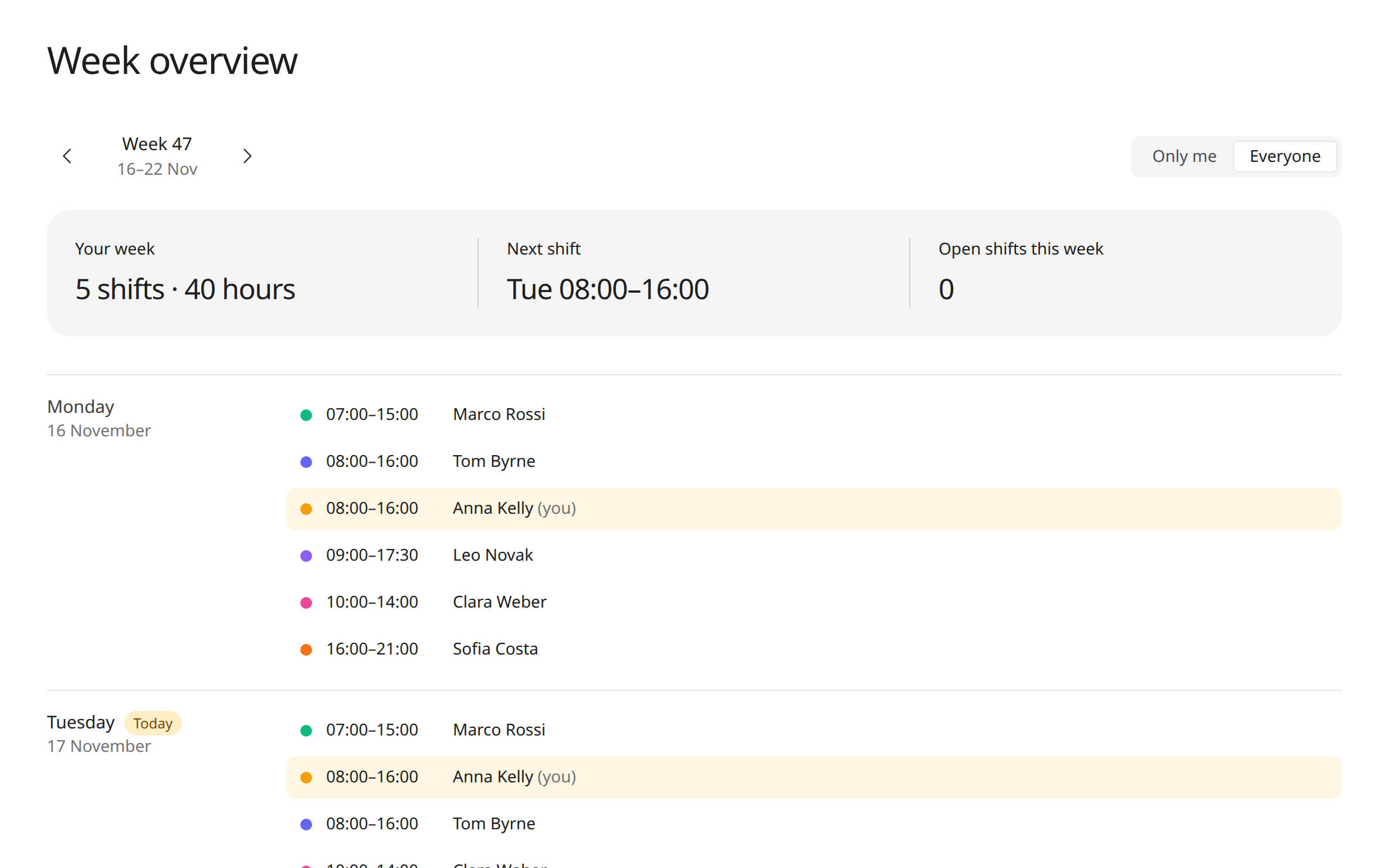
Employees find the schedule in their menu. They see all colleagues’ confirmed shifts in a calendar with week, day and list views, and can choose to see only their own.
No old versions, no screenshots in the chat. What employees see is always the current schedule – with the shifts from every confirmed schedule together.
How it works
- 1
Plan the week
See when employees have said they can work. Click a day next to an employee and set the start and end – or post the shift as open. With a default schedule, the week is already planned.
- 2
Confirm the schedule
When the week is ready, confirm it. Only now can employees see it and claim the open shifts.
- 3
Employees handle the rest
Everyone sees the confirmed shifts on their phone, claims open shifts and swaps shifts with each other – without you calling around.
Shift scheduling and time tracking in one system
Shifts aren’t recorded as working time on their own – it’s the actual working time that must be recorded. But when an employee records time on a day with a shift, the hours are already suggested, and the shift shows right in the time tracking calendar.
Read more about scheduling and time tracking.
Included in Weekplace
€199
one-time · excl. VAT
- Shift scheduling, time tracking, vacation and absence
- Unlimited employees
- No subscription – access forever
No payment to get started
Frequently asked questions about shift scheduling
What does the shift scheduling cost?
Shift scheduling is part of Weekplace. You pay €199 excl. VAT once and get the whole system: shift scheduling, time tracking, vacation and absence, and employee records. There is no subscription and no price per employee.
Is there a scheduling app for employees?
Yes. Weekplace is a web app that works in the browser on iPhone, Android, tablet and computer, so there is nothing to download. Employees can add Weekplace to their home screen and open the schedule like an app.
Can Weekplace replace our schedule in Excel?
Yes. Instead of a rota or schedule in a spreadsheet, you plan the week online. Employees see the confirmed schedule on their phone, and you can save your usual week as a default schedule.
Can employees see the schedule on their phone?
Yes. Weekplace works in the browser on phone, tablet and computer. Employees find the schedule in the menu and can see all their colleagues’ confirmed shifts or just their own.
Can employees see a schedule that isn’t finished?
No. A new week is a draft that only owners and admins can see. Employees see the week once it is confirmed. You can also turn a confirmed week back into a draft.
Are shifts automatically recorded as working time?
No. The schedule is the planned working time, and it’s the actual working time that must be recorded. When an employee records time on a day with a shift, the hours are suggested from the shift.
Who can make the schedule?
The company’s owners and admins can plan, change and confirm the schedule. Employees can see the confirmed schedule, say when they can work, claim open shifts and offer their own shifts for a swap.
Do I have to build the schedule from scratch every week?
No. Save your usual week as the default schedule. Every Monday, the following week is planned from it as a draft, so you only fix what’s different and confirm. You can also copy last week.
Can employees pick up shifts themselves?
Yes. Post a shift as open, and once the week is confirmed every employee can see it under “Open shifts”. The first to press “Take shift” gets it. An employee can’t take a shift that overlaps one of their own.
Can employees swap shifts?
Yes. An employee can offer their shift for a swap with a short message. Colleagues see it under “Open shifts”, and the shift only changes hands when one of them takes it. Until then it is still the original employee’s shift.
Can employees say when they can and can’t work?
Yes. Under “My availability” the employee marks each day “Available” or “Unavailable” – all day or for a time range – with a note such as “Exam”. It can repeat every week up to a year ahead. You see it as a green or red dot in the schedule.
Can I schedule someone for a shift they said they can’t do?
Yes. Availability is a guide, not a block. If the shift overlaps a time the employee marked as unavailable, it gets a red border and a warning, but you can still save and confirm the schedule.
Can I see who is on vacation while I plan?
Yes. Vacation days show right in the schedule next to the employee, marked as approved or pending. An employee on vacation can’t be given a shift that day.
Does the schedule help with the EU rest and working time rules?
Yes. Following the EU Working Time Directive, the schedule warns you when an employee gets less than 11 hours of rest between two shifts, when a week has more than 48 hours, and when the average over the last 4 months is above 48 hours a week. You can fix the plan before you confirm it. National rules can be stricter, so check what applies in your country.
Can a shift go past midnight?
Not yet. A shift must start and end on the same day, and each employee can have one shift per day in each schedule.
Can each department have its own schedule?
Yes. If you have departments in Weekplace, each department can get its own schedule with its own employees – sub-departments too. Each schedule has its own default schedule and is confirmed separately, so the kitchen can be confirmed while the floor is still a draft.
What is the shared schedule?
The shared schedule is a schedule of its own that every employee can be put on. It isn’t a combined view of the departments’ schedules. If you have no departments, the shared schedule is the only one you use.
Can an employee work in several departments?
Yes. An employee can belong to several departments and have shifts in several schedules. Shifts in the other schedules show faded while you plan, and you’re warned if two shifts overlap. Rest and hours count across all schedules. Employees can also claim open shifts from other departments – they are clearly marked.
Get started with the shift scheduling guides, or write to us at support@weekplace.com. Or read our guide: How to make a work schedule.